

Plan availability and access
Website Visitors is available on Pro, Premium, or Scale plans.This feature is available on Pro, Premium, or Scale plans only. Free and Starter plans cannot access Website Visitors and will need to upgrade in order to access this feature. Go to Settings → Payments & Subscription to upgrade.
What you can do with Website Visitors
- Identify anonymous visitors - see the company name, industry, size, and location of businesses browsing your site, even if they never fill out a form.
- Score intent - companies are automatically rated Hot, Warm, or Cold based on their behaviour: which pages they visited, how many times they returned, and how long they stayed.
- Track engagement - see exactly which pages were viewed, visit duration, and return frequency for each company.
- Reveal contacts - click through to a list of verified employees at any visiting company and reveal their email addresses and phone numbers using your standard Lusha credits.
- Save to tables - save companies to your Lusha tables for follow-up, CRM export, or sequence enrollment.
- Access via MCP - query Website Visitors data directly inside AI assistants like Claude via the Lusha MCP Server, without leaving your AI conversation.
Credits and billing
Website Visitors costs credits. Website visits use a separate credit pool from your standard Lusha credits, managed through the One-Wallet system:- 2 credits per identified company - charged once per unique company identified in a given month.
- Return visits are free - if the same company visits again within the same month, you are not charged again.
- Saved companies are free - once you save a company to a table, all future visits from that company are free, forever.
- Bot traffic is excluded - automated traffic is filtered out and does not consume credits.
- All entry points - the 2-credit charge applies across all three entry points: Workspace, API, and MCP. Credits are consumed regardless of how you access the data.
Revealing individual contact details (emails and phone numbers) uses your standard Lusha credits separately from the Website Visitors identification credits.
Setting up Website Visitors
Setup requires two steps: configuring your domain and installing a lightweight tracking pixel on your website. Both steps must be completed by an Admin or Manager.Step 1 - Add and configure your domain
1
Open Website Visitors
Click Website visitors in the left-hand navigation menu.
2
Open the Website visitors settings tab
Go to Account → Website visitors tab.
3
Add your domain
Click Add domain and enter your website URL (e.g., 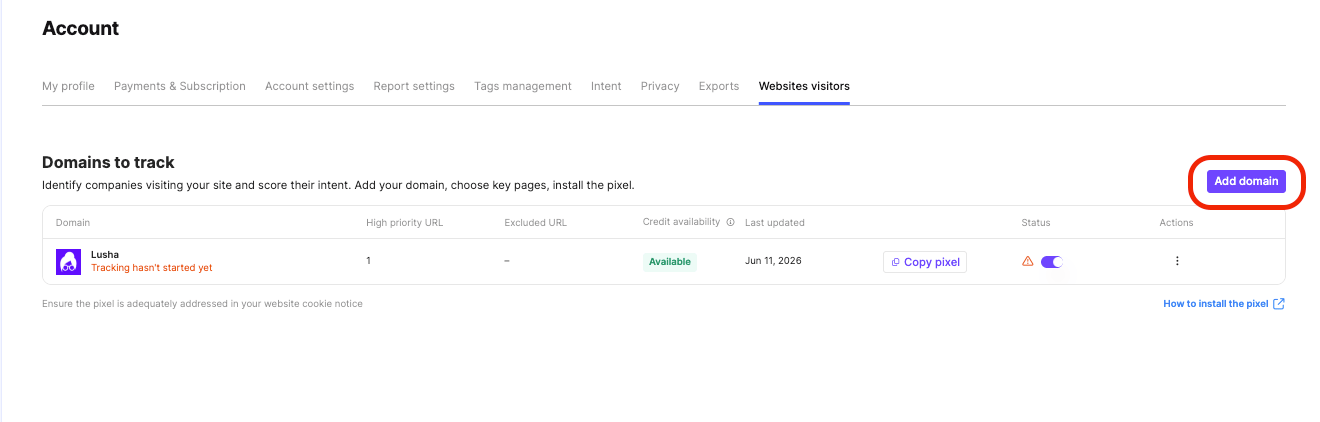
https://www.yourcompany.com).4
Set high-priority pages
Enter URL paths like
/pricing or /demo. Visits to these pages will increase a company’s Intent Score.5
Exclude pages (optional)
Enter paths like
/careers or /blog to avoid spending credits on non-sales traffic.6
Exclude countries (optional)
Select countries to ignore if you only sell in specific regions.
7
Save the domain
Click Add domain to save.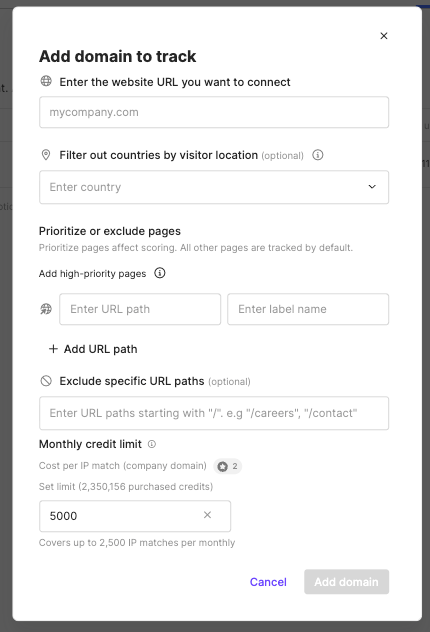
Step 2 - Install the tracking pixel
The tracking pixel is a lightweight JavaScript snippet (loads in under 50ms) that identifies companies visiting your site. You can install it manually or via Google Tag Manager. Manual installation:1
Copy the tracking pixel code
In the Website Visitors settings, copy your unique tracking pixel code.
2
Paste the code into your site
Paste it into the
<head> section of your website.3
Verify the installation
Return to Lusha and click Verify Installation to confirm it is working.
1
Create a Custom HTML tag
In Google Tag Manager, create a new Custom HTML tag.
2
Paste the tracking pixel code
Paste your tracking pixel code into the tag.
3
Set the trigger to All Pages
Set the trigger to All Pages.
4
Publish the container
Publish the container.
5
Confirm the pixel is active
Pixel active and waiting for matches. Your installation was successful.
Data typically begins appearing in your dashboard within 24 to 48 hours of installation.
Step 3 - Set your credit limit
You can control how many credits Website Visitors can spend each month by setting a credit limit on your domain. This keeps identification costs predictable without stopping you from seeing returning visitors or companies already saved to your tables.1
Find the credit limit field
In Account → Website visitors, find the Credit Limit field for your domain.
2
Set the credit amount
Enter a credit amount, or leave it empty for no limit.
3
Save the limit
Click Save.
- Default: 10% of your total credit balance, capped at a maximum of 5,000 credits.
- Minimum: 50 credits (= 25 companies = 1 page of results). You cannot set a limit below this value.
- Maximum: Your full credit balance. You cannot allocate more credits than you have available.
- No limit: Leave the field empty to allow Website Visitors to use credits freely from your balance.
Once your credit limit is reached, new company identification stops for the rest of the month. Return visits from already-identified companies and companies saved to your tables remain free and do not count toward the limit.
Credit Availability column
The domain settings table in Account → Website visitors includes a Credit Availability column showing how many credits remain against your configured limit. This gives you live visibility into spend without opening each domain’s individual settings.Notifications
You will receive an in-app notification when you reach 80% of your credit limit, and again when you reach 100%. Admins can increase or decrease the credit limit at any time from Account → Website visitors.Using the dashboard
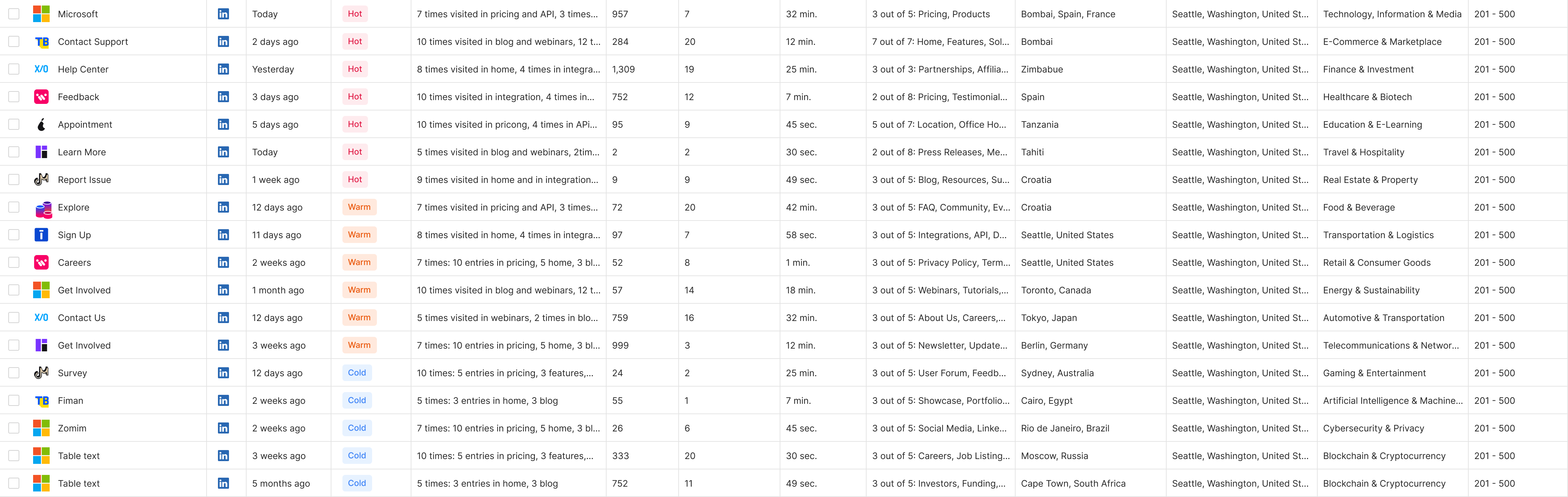
Once your pixel is active and data starts flowing in, the Website Visitors dashboard shows a list of all companies that have visited your site. By default, it shows data from the last 7 days. You can adjust the time window and sort or filter the list to focus on the most relevant accounts. Each row in the dashboard shows:- Company name, industry, location, and size
- Intent score - Hot, Warm, or Cold
- Links to the company’s LinkedIn profile and website
- A View employees button to access verified contacts at that company
Understanding intent scores
Intent scores are calculated automatically based on the pages a company visited, the number of visits, and the time spent on the site. Companies that visit high-priority pages (like/pricing or /demo) receive a higher score.
To see why a company received its score, hover over the Intent score badge. A tooltip shows unique visitors, total visits by page, visit frequency, and top visitor locations.
Viewing company details
Click on any company row to open its details panel on the right. The panel shows:- Company overview - description, website, LinkedIn
- Website visit summary - intent score, unique visitors, total visits by page, visit frequency, and visitor locations
- Company information - headquarters location, industry, annual revenue range, employee headcount, and specialties
- From the panel, click View employees to see a list of people at that company available in Lusha’s database. Use your standard prospecting credits to reveal their email addresses and phone numbers.
Sorting, filtering, and saving companies
Use the Sort and Filter controls at the top of the dashboard to focus your view. You can sort by last visit date, intent score, or other columns, and filter to show only Hot accounts, specific industries, or companies from particular locations. To save companies to a table:
- Select one or more companies using the checkboxes on the left.
- Click Save to table at the top of the dashboard.
- Choose an existing table or create a new one.
Compliance and legal requirements
Website Visitors identifies B2B entities (companies), not individual people, which keeps it aligned with GDPR and CCPA standards. However, you are responsible for two things before going live: Cookie consent and Privacy Policy update.Cookie consent
You must have a Consent Management Platform (CMP) on your site that allows visitors to opt out of tracking cookies. If you do not already have one, you must add it before installing the pixel. Update your cookie policy to include:- Cookie name: Lusha Website Visitors Tracking Pixel
- Purpose: Company-level visitor identification for B2B sales intelligence
- Type: Analytics/Marketing cookie
- Duration: Session-based tracking
- Data collected: IP address (matched to company), pages visited, visit timestamp, referrer source
Privacy Policy update
You must update your Privacy Policy to disclose that you use visitor identification technology. This is a legal requirement under GDPR and CCPA. Add disclosure language to your privacy policy. Here’s the recommended text: “We use visitor identification technology to understand which companies visit our website. This technology matches your IP address to publicly available company information. We do not identify individual visitors or track personal browsing behavior. This processing is based on your consent, which can be withdrawn at any time via cookie preferences.”Data retention
Unsaved Companies:- Automatically deleted after 90 days
- You’ll receive a notification 7 days before deletion
- Option to save companies you want to keep
- Kept indefinitely (or until you delete them)
- Exempt from auto-deletion
- Future visits from saved companies are always free
- Domain settings, important pages, and exclusions are kept as long as your subscription is active
- Deleted 30 days after you cancel your subscription