

Before you begin
Make sure the following are in place before starting:- HubSpot Super Admin role - required to install apps from the HubSpot Marketplace.
- Active Lusha account - the installing admin must be able to sign in to Lusha during setup.
- Lusha seat per team member - each rep who will use signals needs their own Lusha seat and will connect their personal account individually after installation.
Setup has two phases.
- Step 1 is the admin installation - done once for the whole portal.
- Step 2 is the per-rep connection - each rep does this the first time they open a contact record.
Step 1 - Admin installation
One-time setup by a HubSpot Super Admin. Once done, the Lusha Signals card is live on every contact record.1
Find Lusha B2B Intelligence in the Marketplace
In your HubSpot account, go to Settings → Integrations → App Marketplace. Search for Lusha B2B Intelligence and open the listing.
2
Click Install app
If you manage multiple HubSpot portals, select the one you want to install into.
3
Sign in to your Lusha account
You will be redirected to Lusha’s sign-in page. Enter your Lusha credentials and authenticate. If your Lusha account is inactive or invalid, installation stops at this step.
4
Approve HubSpot permissions
Review the requested permission (crm.objects.contacts.read) and click Approve & Continue.
5
Add Lusha Signals to a contact record
Choose a contact and click on it.
6
Open the card settings
Click the settings icon on the contact record sidebar.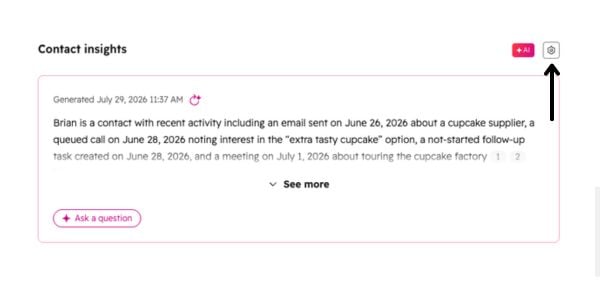
7
Close the Edit default card panel
Close the “Edit default card” panel and click the + button.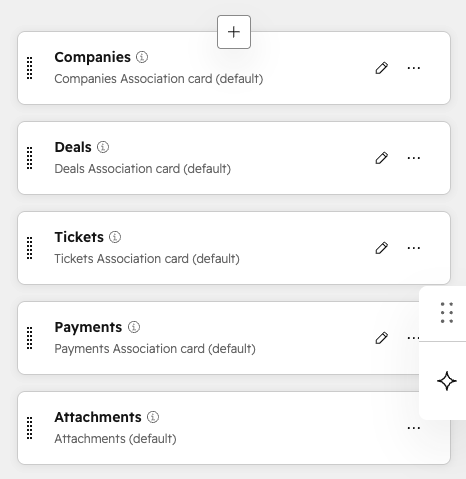
8
Add the Lusha card from the library
Switch to the Card library, search for Lusha, and add the card. Close the panel, then click Save and exit. The Lusha Signals card is now live on every contact record in your portal.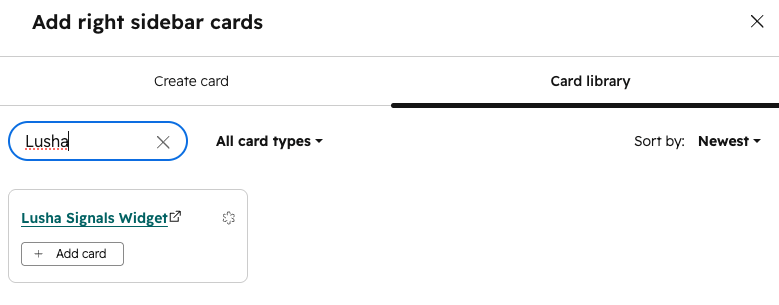
Step 2 - Rep account connection
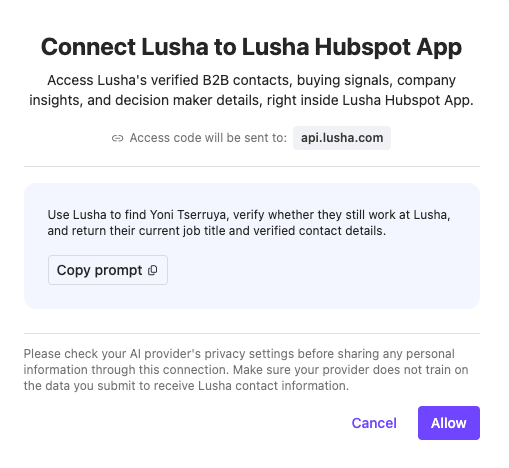
Only the first time a rep opens a contact record, they’ll need to connect their own Lusha account - a one-time step per user, not an error.1
Click Connect Lusha Account
You will be redirected to Lusha’s sign-in page. Sign in with your personal Lusha credentials.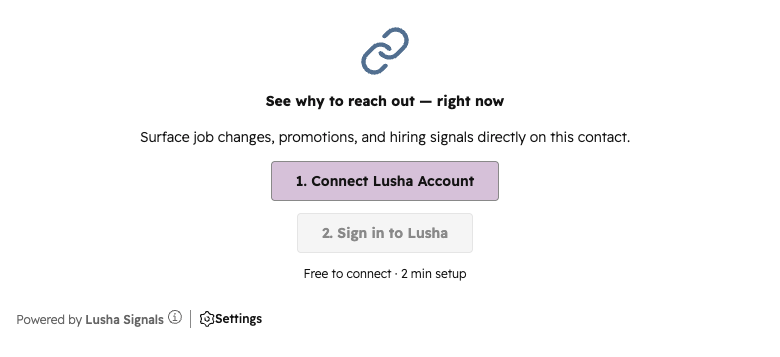
2
Confirm the connection
After signing in, the card transitions to the Signal Preferences screen. You will not see the Connect screen again.
Each rep must connect their own Lusha account individually. One person’s connection does not carry over to others. Your signal credits are tied to your personal Lusha account.
Step 3 - Choose your signal preferences
Immediately after connecting, you will complete a one-time Signal Preferences setup. This tells Lusha which signal types to show you. You can update these anytime from Settings.1
Select your signal types
Open any contact record in HubSpot. Go to Contacts → Contacts and open any contact. You will see the Lusha Signals card in the right sidebar. Click the settings icon to choose which signals you want to see.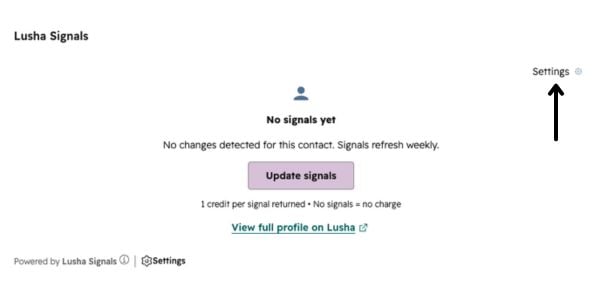
2
Choose your Contact and Company signals
The setup screen shows two sections: Contact Signals and Company Signals. All four live signal types are enabled by default. Toggle off any you don’t want to see. You must keep at least one enabled to continue. Signal types marked Soon are not yet available - they appear as greyed-out previews and cannot be toggled.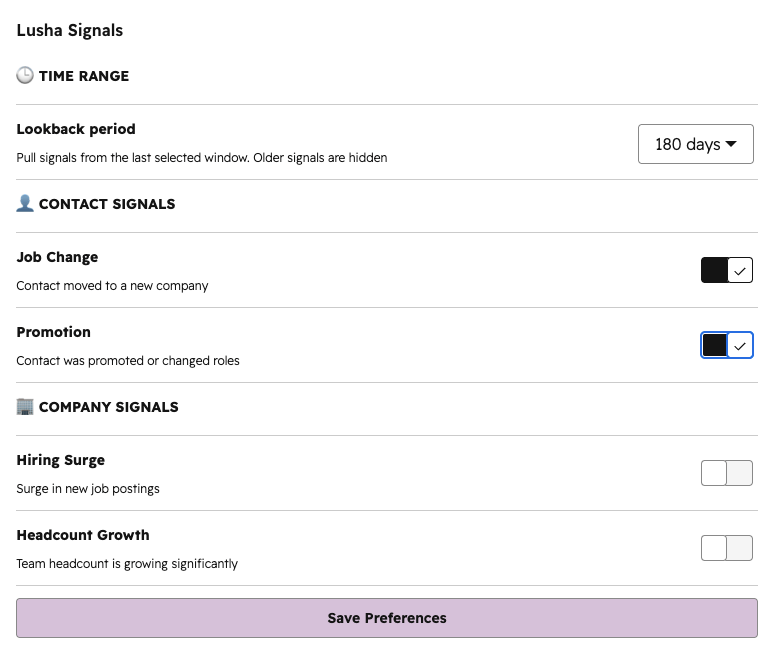
3
Click Save & Continue
Your preferences are saved and the card transitions to the idle state with a Get Signals button. You’re ready to use the app.
Signal Preferences setup only appears once. To update your preferences later, click the gear icon in the Lusha Signals card header → Signal Preferences → My settings.
Fetching signals for a contact
Signals are always fetched on demand - never automatically. You control when to pull signals and when credits are consumed.1
Open a contact record and click Get Signals
Find the Lusha Signals card in the sidebar and click Get Signals. The card shows a loading indicator while Lusha retrieves data.
2
Review the signals
Signals appear grouped by type. Contact-level signals (Job Change, Promotion) appear under “About [Contact Name]”. Company-level signals (Hiring Surge, Headcount Growth) appear under “About [Company Name]”. Up to 5 signals are shown, ranked by relevance. Each signal includes the type, a brief description, and how recently it occurred. Click any signal to expand the full detail. To open the contact in Lusha for further prospecting, click Open in Lusha.
Some contacts may not have any recent signals - the card will show a “No signals found” message. This is expected. Try contacts who have had recent career or company activity.
Signal types
Four live signal types are available, grouped by whether they reflect activity on the contact or their company.Credits
1 credit is consumed each time you click Get Signals on a contact record. Credits are tied to your individual Lusha account - no credits are used until you click the button.When your credits run out, the card switches to a Credits Exhausted state. You will see your credit meter at 0 and your reset date. Click Upgrade Plan to increase your limit, or wait for your credits to reset at the start of your next billing cycle.
Managing settings
To access settings: click the gear icon in the Lusha Signals card header at any time.Troubleshooting
The Lusha Signals card doesn’t appear after installation The card may take a few seconds to appear after the admin completes installation. Try refreshing the contact record. If the card is still missing, confirm the installation completed successfully under Settings → Integrations → Connected Apps.I see the Connect screen even though I already connected Try signing out of HubSpot and signing back in. If the issue persists, click Connect Lusha Account to reconnect - your preferences will be preserved.
No signals are showing for any of my contacts Signal availability depends on recent activity for that contact and their company. Try contacts at larger or more active companies, or contacts who recently changed roles. Some contacts will have no signals - this is expected.
I want to change my signal preferences after initial setup Click the gear icon in the card header, go to Signal Preferences → My settings, update your toggles, and click Save Preferences. Changes apply to your next Get Signals click.
How do I uninstall the app? A HubSpot Super Admin can uninstall from Settings → Integrations → Connected Apps → Lusha B2B Intelligence → Uninstall. Uninstalling removes the card from all contact records in the portal.
If the issue persists after following the steps above, contact Lusha Support at support@lusha.com.
Coming soon: company enrichment (Phase 2)
Phase 2 will add a Company Enrichment section to the Lusha card on HubSpot Company records. With one click, Lusha will write firmographic, technology, and funding data directly into your HubSpot Company properties - no copy-paste, no tab switching. What’s included in Phase 2:- Company Info: Industry, employee count, revenue range, year founded, and HQ location written to HubSpot Company properties.
- Tech Stack: The company’s current technology stack, displayed as tags.
- Funding: Total funding raised and most recent funding round.
- Enrichment Preferences: Choose exactly which fields Lusha writes to HubSpot. Toggle individual fields on or off from your settings.
- Manual trigger, credit-transparent: Enrichment only runs when you click Enrich Company. You see the credit cost before confirming. Already-enriched companies return from cache at no charge.
Phase 2 builds on the same Lusha card already on your Contact records - no new installation required. When it’s live, the Enrichment section will appear below the Signals section on Company record pages.
You’re all set! Your team can now view live buying signals on every HubSpot contact record.