Using the Lusha v3 Search & Enrich API
This guide walks through building a record-triggered Salesforce Flow that automatically enriches every newly created Lead using the Lusha v3 API. When a Lead is created, the Flow sends whatever identifiers are available to Lusha, receives the matching contact profile, and writes the returned data back onto the Lead record.
The integration is entirely declarative. No Apex is written or deployed at any point.
Note: v2 endpoints stop responding in November 2026. Any integration still calling a /v2/ URL will break on that date.Visit dashboard.lusha.com → API Hub → Manage API Keys → + Create new Key. Copy it — you'll paste it once below. Auth is via an api_key HTTP header (not Bearer).
| Step | Configuration |
|---|---|
| Setup → Named Credentials → External Credentials → New | Label/Name: Lusha v3 / Lusha_v3. Auth Protocol: Custom. Save. |
| On that record → Principals → New | Parameter Name Admin, Sequence 1, Identity Type Named Principal. Under Authentication Parameters → Add: Name LushaApiKey, Value = your API key. Save. |
| Same record → Custom Headers → New | Name api_key, Value {!$Credential.Lusha_v3.LushaApiKey}, Sequence 1. |
| Setup → Named Credentials → Named Credentials tab → New | Label/Name: Lusha v3 / Lusha_v3. URL: https://api.lusha.com. External Credential: the one above. Uncheck Generate Authorization Header. Check Allow Formulas in HTTP Header. Save. |
Access to the Principal is granted from the Permission Set side only: the External Credential page itself has no working "grant access" control, despite appearing to.
Creating the credential is not sufficient on its own. Salesforce requires an explicit grant before any user can invoke it.
- Label: Lusha API Access
- Open the permission set and click External Credential Principal Access
- Click Edit, move your Lusha external credential principal from Available to Enabled, and click Save
Assign it to every user who will create Leads — not only to yourself.
This is the most common cause of a silent 401. Record-triggered Flows run in system context, but the External Credential principal still resolves against the running user. If the user who created the Lead lacks this permission set, the callout fails with 401 and — because it runs asynchronously — produces no visible error anywhere in the UI.
There are 4 core sets of elements to configure within your new Flow. They are organized below to help you visualize the complete structure:
| Part | Purpose | Elements |
|---|---|---|
| 1. Trigger and callout | Assemble the request and call Lusha | Build Lusha Request, Enrich Contact via Lusha, Each Result Loop |
| 2. Set Email | Select the first work email | Error Capture Attempt, Email Loop, Email Capture Attempt |
| 3. Set Phones | Select mobile and other numbers | Phone Loop, Phone Capture Attempt |
| 4. Update Lead | Commit the record | Found a Match Attempt, Update Record |
To build this flow, you must begin with a Record-Triggered Flow, and the HTTP Callout Action element, otherwise you will encounter inconsistencies when configuring your Apex Defined Variables items. Once created, you will build and connect all remaining steps around the Callout Action.
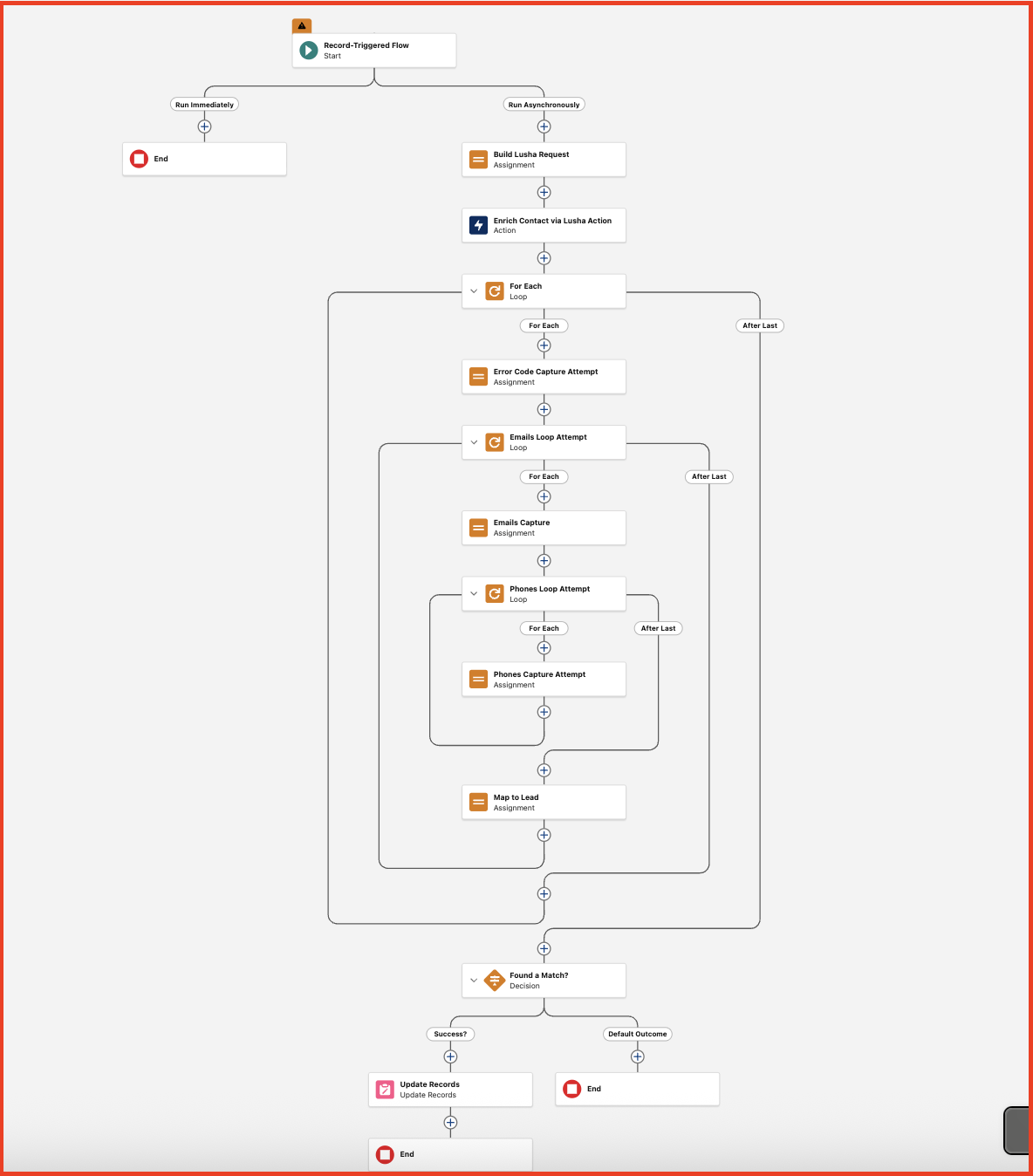
- Within the Salesforce Setup menu, search for Flows.
- Click the New Flow button.
- Choose your automation type. We recommend Record-Triggered Flow for automatic enrichment on creation, or Screen Flow if you would prefer to trigger enrichment manually via a button.
- Select an Object: Lead
- Trigger the flow when: A record is created
- Set Entry Conditions:
- Condition Requirements: none [see Appendix C if you'd like requirements]
- Optimize the Flow for: Actions and Related Records
- Enable Add Asynchronous Path
For the rest of this guide, remember these two important details:
Connect everything to the asynchronous path only. All following steps connect to the Run Asynchronously path. Do not connect any step to the Run Immediately path. Salesforce forbids HTTP callouts in the same transaction as the triggering DML, so a callout placed on the immediate path fails at activation.
Scheduled Paths will always read "2". This is expected. The count includes the built-in Run Immediately path plus your asynchronous path. Run Immediately cannot be deleted, so simply leave it unconnected.
- Click the Create HTTP Callout button
- Name: Lushav3
- Named Credential: Lusha v3
- Click Next
- Label: Enrich
- Method: POST
- Path:
/v3/contacts/search-and-enrich
- Click Next
- Sample JSON Request: [see Appendix A]
- Click Review, then click Next
- Choose Use Example Response
- Sample JSON Response: [see Appendix B]
- Click Review
- Within the Data Structure section, change the following elements to String type:
jobTitle.startDateemails.updateDatephones.updateDateresults.updateDate
- Click Save
- New Action Label: "Enrich Contact via Lusha Action"
- API Name: "Lusha"
- Set the Request Body:
- Click + New Resource
- API Name:
varRequestBody - Click Done
- Click Done, then connect Build Request Body to Lusha Enrich
- Label: Build Contact
- Map the following:
| Variable | Operator | Value |
|---|---|---|
varRequestItem > firstName | Equals | Triggering Record > First Name |
varRequestItem > lastName | Equals | Triggering Record > Last Name |
varRequestItem > companyName | Equals | Triggering Record > Company |
varRequestItem > companyDomain | Equals | {!formCompanyDomain} [see Appendix D] |
varRequestItem > email | Equals | Triggering Record > Email |
varRequestItem > linkedinUrl | Equals | Triggering Record > LinkedIn URL |
varRequestItem > clientReferenceId | Equals | Triggering Record > Lead ID |
varRequestBody > contacts | ADD | varRequestItem |
Where did thevarRequestBodyandvarRequestItemvariables come from? ThevarRequestBodyvariable was created during your configuration of the HTTP Callout step. It is an Apex-defined variable which contains the API request structure you'll be sending to Lusha. ThevarRequestItemvariable will need to be created now: Click + New Resource → Resource Type: Variable → API Name:varRequestItem→ Data Type: Apex-Defined → Apex Class: you must search for your external service classes containing "Lushav3" and select the one ending in_IN_body_contacts→ Click Done.
- Label: "For Each"
- Collection Variable:
{!Lusha.2XX.results} - Specify Direction: First item to last item
- Label: "Error Code Capture Attempt"
- Map Variable/Value Pair:
varAttemptTitleEQUALS{!For_Each.jobTitle.title} - Map Variable/Value Pair:
varAttemptErrorCodeEQUALS{!For_Each.error.code}
Where did thevarAttemptTitleandvarAttemptErrorCodevariables come from? Both of these variables will need to be created now, but thankfully they will be simple Text variables. For both, do the following: Click + New Resource → Resource Type: Variable → API Name:varAttemptTitleorvarAttemptErrorCode→ Data Type: Text → Default Value: leave this field blank → Click Done. If you would like to map any additional data coming from Lusha's API response, simply follow this same logic to create more text variables.
- Label: "Emails Loop Attempt"
- Collection Variable:
{!For_Each.emails} - Specify Direction: First item to last item
- Label: "Emails Capture"
- Map Variable/Value Pair:
varAttemptEmailEQUALS{!Loop_Attempt_Emails.email}[create this text variable]
- Label: "Phones Loop Attempt"
- Collection Variable:
{!For_Each.phones} - Specify Direction: First item to last item
- Label: "Phones Capture"
- Map Variable/Value Pair:
varAttemptPhoneEQUALS{!Loop_Attempt_Phones.z0number}[create this text variable]
At this point, you've created all the loops necessary to process any incoming Lusha data. Now you will close out the loops, update the triggering Lead, and log any error messages.
- Label: "Map to Lead"
- Map Variable/Value Pair:
{!$Record.Title}EQUALS{!varAttemptTitle} - Map Variable/Value Pair:
{!$Record.Email}EQUALS{!varAttemptEmail} - Map Variable/Value Pair:
{!$Record.Phone}EQUALS{!varAttemptPhone}
- Label: "Found a Match?"
- Add a new Outcome:
- Outcome Label: "Success?"
- Condition Requirements: All Conditions Are Met (AND)
- Map Resource/Value Pair:
{!varAttemptErrorCode}Is Null{!$GlobalConstant.True}
- Label: "Update Records"
- How to Find Records: Use the IDs and all field values from a record or record collection
- Record or Record Collection:
{!$Record}
At this point, you have completed configuring the full flow. All steps should be nested under the Asynchronous Path, and the concluding "Success?" path will lead to the Update Records step, while the "Default Outcome" should be left empty.
Save the Flow, click Debug, and tick Run Asynchronous Paths. Without this option the entire branch you have just built is skipped and it will appear that nothing happened.
Debug runs in rollback mode. Field values shown in the debug output will not persist to the record. A message reading "ready to be updated when the interview finishes" is expected and does not indicate a problem. Only a real trigger proves the write.
Activate the Flow, then create a Lead manually. The asynchronous path runs a few seconds after the insert commits, so fields will not populate instantly.
Paste this as the Sample JSON Request when configuring the HTTP Callout. Flow generates Apex properties only for keys present in this sample, so it must include every identifier you might ever send.
{
  "contacts": [
    {
      "clientReferenceId": "sfdc-lead",
      "firstName": "Orit",
      "lastName": "Shilvock",
      "companyName": "Lusha",
      "companyDomain": "lusha.com",
      "email": "orit.shilvock@lusha.com",
      "linkedinUrl": "https://www.linkedin.com/in/orit-shilvock-6243bb5"
    }
  ]
}Therevealfield is deliberately omitted. The API accepts an optionalrevealarray to control whether emails, phones, or both are unlocked. It is an array of primitive strings, which Flow's schema generator cannot type — including it prevents the callout from saving. Omitting it returns both emails and phones, which is the desired behaviour here.
Paste this as the Sample JSON Response. Select Use Example Response rather than Connect.
{
  "requestId": "d2c14f20-3f35-430c-a71e-56ae51993af9",
  "results": [
    {
      "clientReferenceId": "sfdc-lead",
      "id": "v1.P47N0kkZlu-dq2E9I0HADOTv6XT5zlvT-g",
      "firstName": "Orit",
      "lastName": "Shilvock",
      "fullName": "Orit Shilvock",
      "jobTitle": {
        "title": "Vice President of Partnerships",
        "seniority": "Vice President",
        "startDate": "2025-01-20"
      },
      "company": {
        "id": "v1.A1gXjPYd63SSPjSvxO4uwqXqE5ilJV9S",
        "name": "Lusha",
        "domain": "www.lusha.com",
        "industry": "Technology, Information & Media"
      },
      "location": {
        "country": "Israel",
        "countryIso2": "IL",
        "state": "Tel Aviv District",
        "city": "Tel Aviv",
        "continent": "Asia",
        "isEuContact": false
      },
      "socialLinks": {
        "linkedin": "https://www.linkedin.com/in/orit-shilvock-6243bb5"
      },
      "partialProfile": false,
      "emails": [
        {
          "email": "orit.shilvock@lusha.com",
          "type": "work",
          "confidence": "A+",
          "updateDate": "2026-08-13"
        }
      ],
      "phones": [
        {
          "number": "+14155551234",
          "type": "mobile",
          "doNotCall": false,
          "countryIso2": "US",
          "updateDate": "2026-08-13"
        }
      ],
      "error": {
        "code": "NOT_FOUND",
        "message": "Contact not found"
      },
      "updateDate": "2026-08-13"
    }
  ],
  "billing": { "creditsCharged": 2, "resultsReturned": 1 }
}Set Condition Requirements to Formula Evaluates to True and paste the following. [See Appendix E for Suggested Custom Fields]
NOT({!$Record.Lusha_Enriched__c})
&& (
     NOT(ISBLANK({!$Record.Email}))
  || NOT(ISBLANK({!$Record.LinkedIn_URL__c}))
  || NOT(ISBLANK({!$Record.Website}))
  || (NOT(ISBLANK({!$Record.FirstName}))
      && NOT(ISBLANK({!$Record.LastName}))
      && NOT(ISBLANK({!$Record.Company})))
)
This makes the Flow identifier-agnostic. It fires whenever any combination of identifiers that Lusha accepts is present, and skips Leads that could not be matched anyway — which avoids spending credits on requests that cannot succeed.
If your organization frequently captures inconsistent websites and domains, you can create a formula variable to automatically clean up URLs before adding them to your Lusha HTTP request.
Create the following Variable Formula:
formCompanyDomain
IF(ISBLANK({!$Record.Website}), "",
  LOWER(SUBSTITUTE(SUBSTITUTE(SUBSTITUTE(
    {!$Record.Website}, "https://", ""), "http://", ""), "www.", ""))
)
This formula resource strips the protocol and www. prefix from the Lead's Website field so it can be sent as companyDomain.
There are a number of custom fields you could create within Salesforce to measure this flow's effectiveness. All are optional, but see below for reference:
| Field Label | API Name | Type | Purpose |
|---|---|---|---|
| Lusha Enriched | Lusha_Enriched__c | Checkbox (default unchecked) | Prevents re-enrichment; audit flag |
| Lusha Contact ID | Lusha_Contact_Id__c | Text (255) | Stable v3 entity ID for cheaper re-enrichment later |
| Lusha Industry | Lusha_Industry__c | Text (255) | Lusha industry taxonomy value |
| Lusha LinkedIn URL | Lusha_LinkedIn_URL__c | URL | Returned socialLinks.linkedin value |
| Lusha Error | Lusha_Error__c | Long Text Area (32768) | Stores the fault message if the callout fails |
| LinkedIn URL | LinkedIn_URL__c | URL | Optional input identifier, if your org captures one on the Lead |