> ## Documentation Index
> Fetch the complete documentation index at: https://docs.lusha.com/llms.txt
> Use this file to discover all available pages before exploring further.
# Build an Automated Prospecting Workflow with Lusha and Make
> Find contacts that match your ICP, enrich them with verified emails and phone numbers, and send them straight to Google Sheets - automatically.
Find the right contacts with Lusha, enrich them with verified emails and phone numbers, and send them straight to Google Sheets, automatically. Setup takes about 10 minutes.
In this guide you'll build a three-step workflow:
| Step | Module | What it does |
| - | - | - |
| 1 | Lusha - Prospect Contacts by ICP | Finds contacts that match your ICP |
| 2 | Lusha - Enrich Contacts | Reveals their verified emails and phone numbers |
| 3 | Google Sheets - Add a Row | Writes each contact to your spreadsheet |
**Before you start.** You'll need a Lusha account with API access, a Make account, and a Google Sheets spreadsheet with a header row (for example: First name, Email, Phone) so Make can detect your columns.
***
## Step 1: Open your Lusha API settings
Go to the [Manage API keys](https://dashboard.lusha.com/api/manage-api-keys) page in Lusha.
 ## Step 2: Create an API key
Create a new key, give it a clear name (for example, "Make integration"), and copy it. You'll need it in Step 6.
## Step 2: Create an API key
Create a new key, give it a clear name (for example, "Make integration"), and copy it. You'll need it in Step 6.
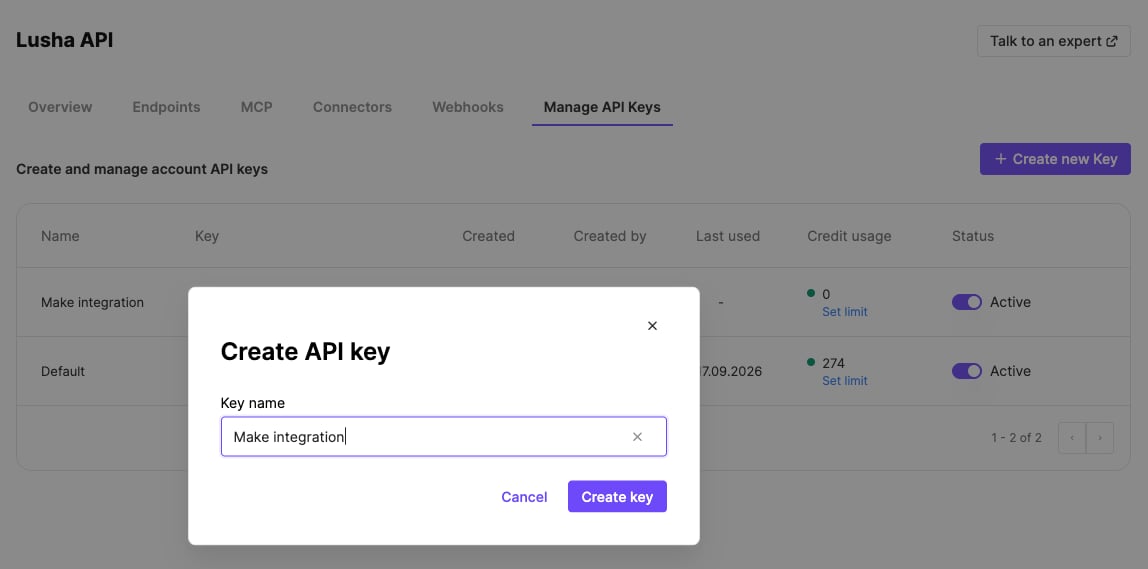 Copy the key now and store it somewhere safe - you won't be able to view it again after you close the dialog.
## Step 3: Create a new scenario in Make
In [Make](https://www.make.com/), click **Scenarios** in the left sidebar, then **Create a new scenario**.
Copy the key now and store it somewhere safe - you won't be able to view it again after you close the dialog.
## Step 3: Create a new scenario in Make
In [Make](https://www.make.com/), click **Scenarios** in the left sidebar, then **Create a new scenario**.
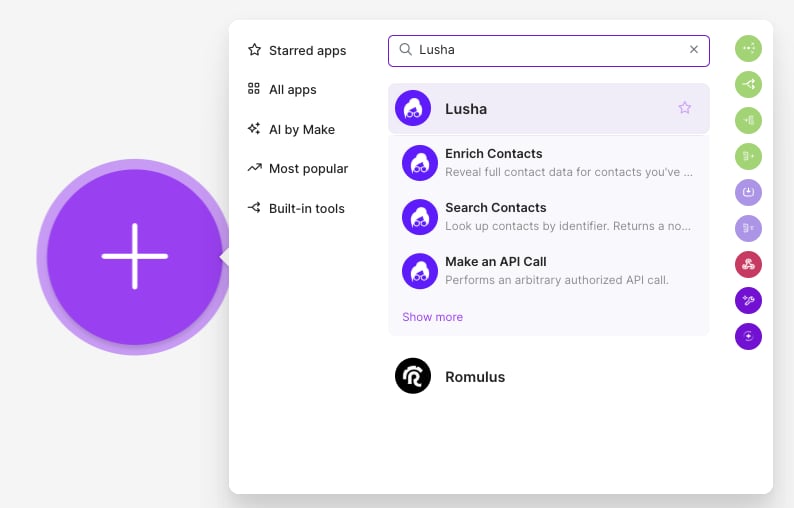
 ## Step 4: Add the Lusha app
Click the large **+** button and search for **Lusha**.
## Step 4: Add the Lusha app
Click the large **+** button and search for **Lusha**.
 ## Step 5: Select the module you want to use
In this example, select **Prospect Contacts by ICP**.
## Step 5: Select the module you want to use
In this example, select **Prospect Contacts by ICP**.
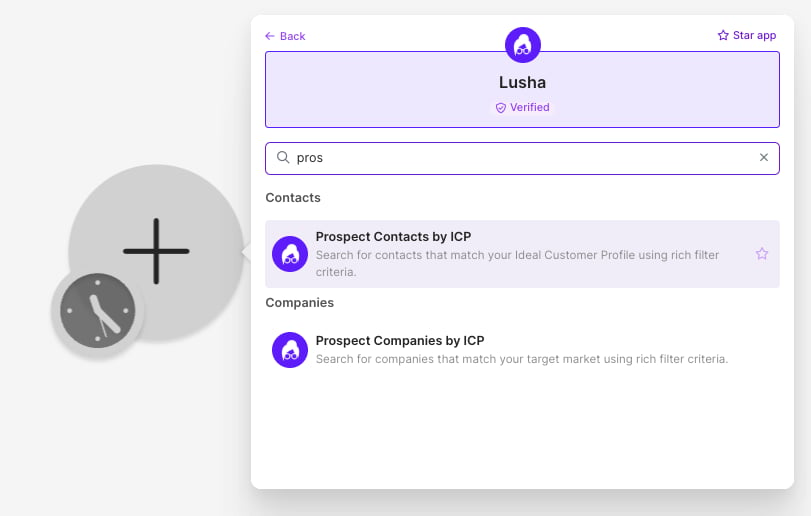 Each Lusha module takes different parameters, so the fields you see in the next step depend on the module you pick here.
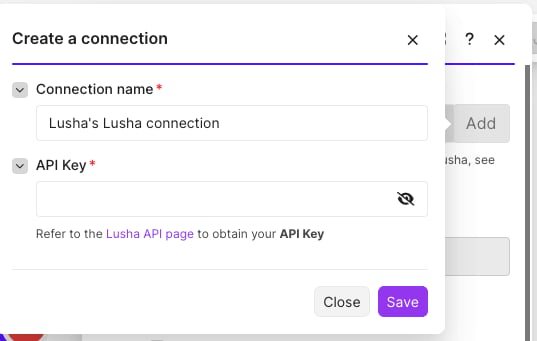
## Step 6: Connect your Lusha account
In the **Connection** field, click **Add** and paste the API key you created in Step 2.
Each Lusha module takes different parameters, so the fields you see in the next step depend on the module you pick here.
## Step 6: Connect your Lusha account
In the **Connection** field, click **Add** and paste the API key you created in Step 2.
 ## Step 7: Define what you want to search
Fill in the parameters you want to search by. In this example we're searching for marketing directors in the US.
## Step 7: Define what you want to search
Fill in the parameters you want to search by. In this example we're searching for marketing directors in the US.
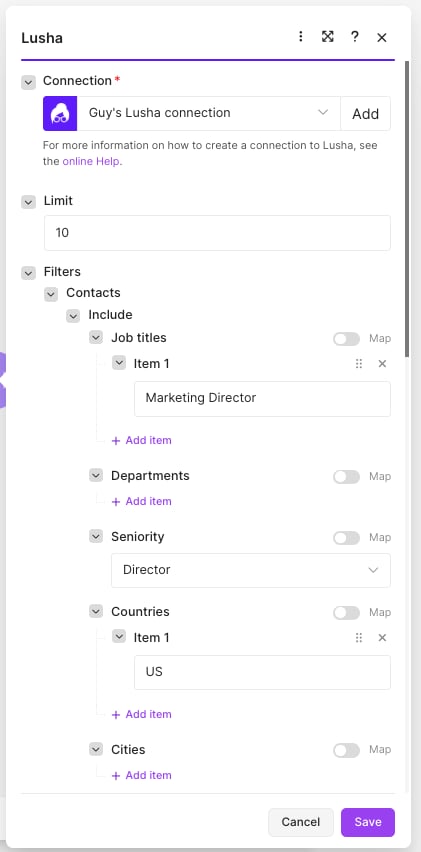 Add each job title as a **separate item**, and use **two-letter country codes** (for example, `US`). To target specific roles, enter their job titles - if you don't get results, try rephrasing them.
## Step 8: Test your search
Click **Run once** and check whether you received results. If you did, you're ready to enrich these contacts to get their emails and phone numbers.
## Step 9: Add the Lusha Enrich Contacts module
Click the **+** icon and search for **Lusha - Enrich contacts**. In the **Item 1** field under **Contact IDs**, select **Contact ID**, then choose the details you want under **Reveal**, such as emails and phone numbers.
Add each job title as a **separate item**, and use **two-letter country codes** (for example, `US`). To target specific roles, enter their job titles - if you don't get results, try rephrasing them.
## Step 8: Test your search
Click **Run once** and check whether you received results. If you did, you're ready to enrich these contacts to get their emails and phone numbers.
## Step 9: Add the Lusha Enrich Contacts module
Click the **+** icon and search for **Lusha - Enrich contacts**. In the **Item 1** field under **Contact IDs**, select **Contact ID**, then choose the details you want under **Reveal**, such as emails and phone numbers.
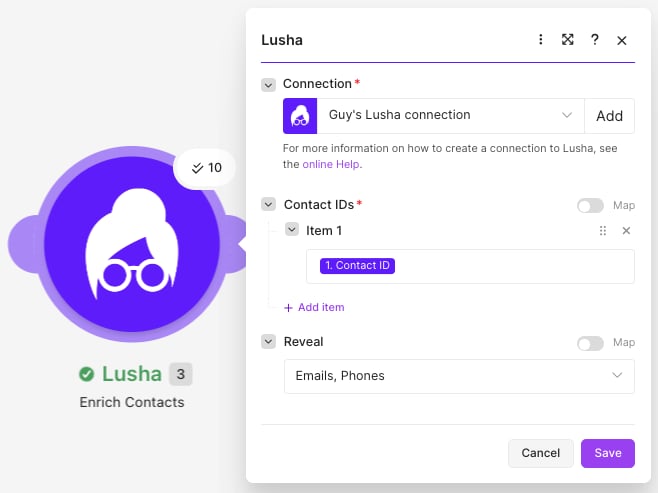 Enriching contacts consumes Lusha credits. Prospecting searches do not - you're only charged when data is revealed.
## Step 10: Connect your spreadsheet and add a row
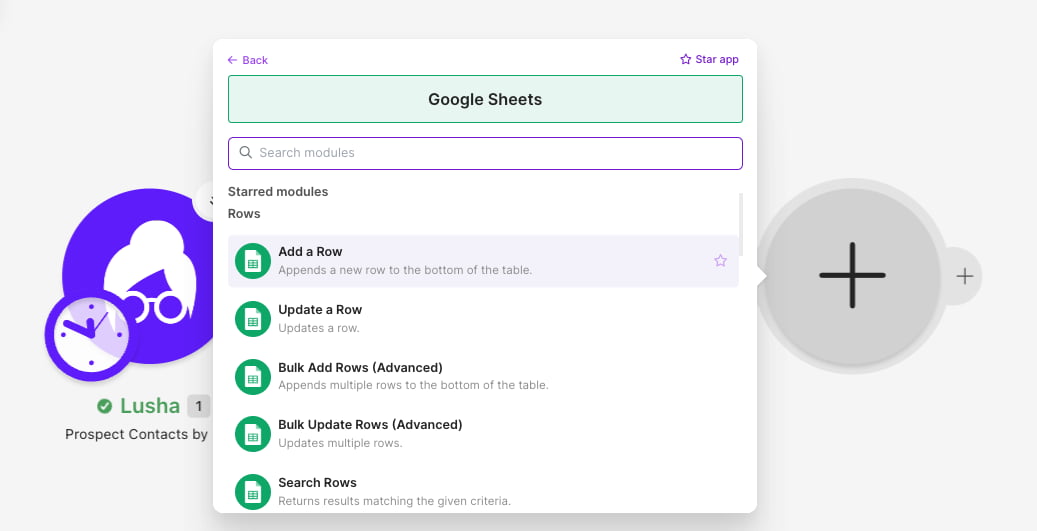
Click the **+** icon, search for **Google Sheets**, and select **Add a Row**. This adds a new row every time a contact's details come in.
Enriching contacts consumes Lusha credits. Prospecting searches do not - you're only charged when data is revealed.
## Step 10: Connect your spreadsheet and add a row
Click the **+** icon, search for **Google Sheets**, and select **Add a Row**. This adds a new row every time a contact's details come in.
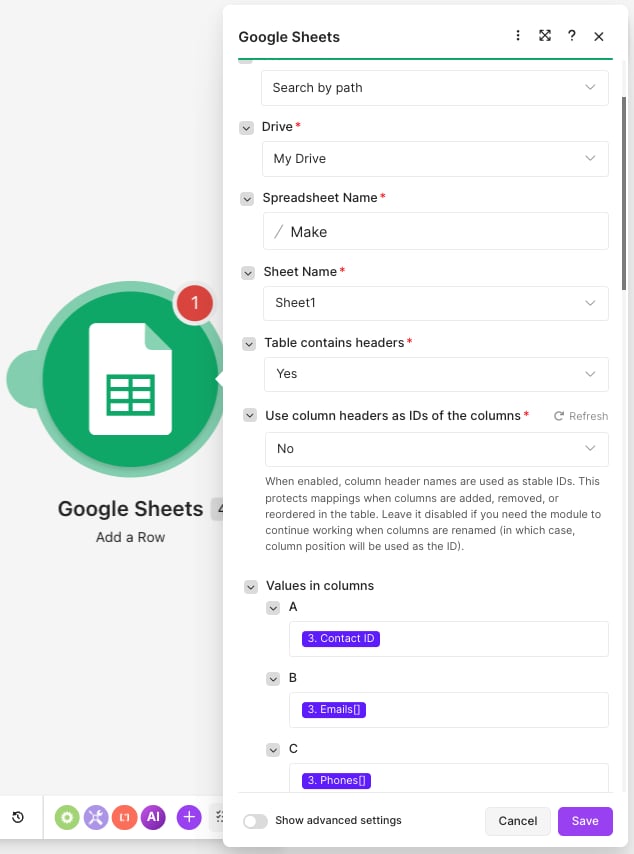
 Connect your spreadsheet, then map each field to a column. In this example the Contact ID goes to column A, emails to column B, and phones to column C.
 ## Step 11: Run the flow
Run the scenario and check your spreadsheet. You should now see a row for each contact with their details.
## Step 11: Run the flow
Run the scenario and check your spreadsheet. You should now see a row for each contact with their details.
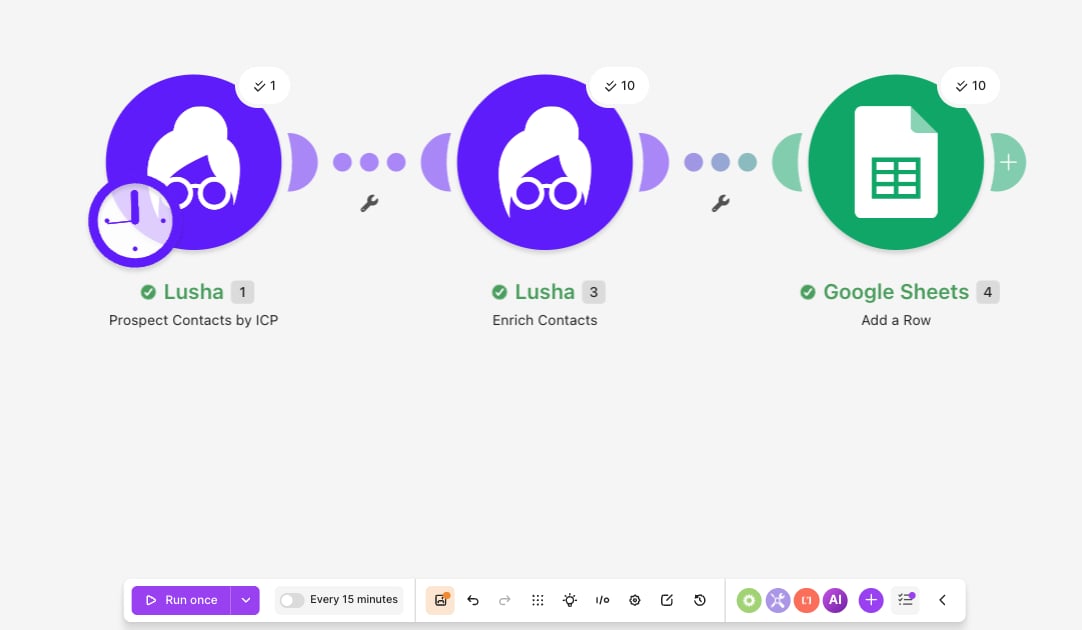 Use the toggle at the bottom of the scenario editor to schedule the automation to run at regular intervals.
***
## Next steps
Connector overview, available actions, and other use cases.
Every filter you can search by, and its valid values.
The endpoint behind the Enrich Contacts module.
How prospecting and enrichment consume credits.
## Related topics
- [Signals API](/tutorials/signals.md)
- [Lusha's Flex Search](/user-guide/getting-started-with-prospecting/lushas-flex-search.md)
- [Tutorials](/tutorials/index.md)
Use the toggle at the bottom of the scenario editor to schedule the automation to run at regular intervals.
***
## Next steps
Connector overview, available actions, and other use cases.
Every filter you can search by, and its valid values.
The endpoint behind the Enrich Contacts module.
How prospecting and enrichment consume credits.
## Related topics
- [Signals API](/tutorials/signals.md)
- [Lusha's Flex Search](/user-guide/getting-started-with-prospecting/lushas-flex-search.md)
- [Tutorials](/tutorials/index.md)